Beginners to SharePoint often battle with the concept of how team
sites are put together. Team sites are made up of lists, libraries and
pages.
Lists
Think of your Excel spreadsheet. You have column headings and rows of data that are captured under those headings, like this :
 SharePoint
Lists are like an online version of Excel spreadsheets, but with better
benefits. Lists are things that you capture rows of information into
instead of uploading something. Using Lists instead of Excel
spreadsheets allows multiple people to edit the information at once,
maintain versions for each item (row) in the list, and create endless
views of the information to extract reports on that information. (See working example).
SharePoint
Lists are like an online version of Excel spreadsheets, but with better
benefits. Lists are things that you capture rows of information into
instead of uploading something. Using Lists instead of Excel
spreadsheets allows multiple people to edit the information at once,
maintain versions for each item (row) in the list, and create endless
views of the information to extract reports on that information. (See working example).
 It is possible to have attachments on your list items as well.

Libraries
Think of your folders on your share drives. You click on a subfolder and drag documents into it.
 Libraries
on SharePoint allow you to upload content into them. This is where you
store your documents – but minus the subfolders. SharePoint has smarter options available to you. (See working example).
Libraries
on SharePoint allow you to upload content into them. This is where you
store your documents – but minus the subfolders. SharePoint has smarter options available to you. (See working example).


 It’s
the same thing on your SharePoint team site. A standard welcome Site
Page (landing page) is embedded into your team site with the ability to
create as many more of them as you like with links anywhere you like. (See working example).
The welcome page on a brand new Team Site is the same as the puzzle
page on Wikipedia. It’s your landing page and you can make many
embedded pages. (Download tutorial). You can link the views from your Lists and Libraries into your Site Pages. (Click here for a sample then click on the Tips, Tricks and Best Practices link).
It’s
the same thing on your SharePoint team site. A standard welcome Site
Page (landing page) is embedded into your team site with the ability to
create as many more of them as you like with links anywhere you like. (See working example).
The welcome page on a brand new Team Site is the same as the puzzle
page on Wikipedia. It’s your landing page and you can make many
embedded pages. (Download tutorial). You can link the views from your Lists and Libraries into your Site Pages. (Click here for a sample then click on the Tips, Tricks and Best Practices link).


Lists
Think of your Excel spreadsheet. You have column headings and rows of data that are captured under those headings, like this :
 SharePoint
Lists are like an online version of Excel spreadsheets, but with better
benefits. Lists are things that you capture rows of information into
instead of uploading something. Using Lists instead of Excel
spreadsheets allows multiple people to edit the information at once,
maintain versions for each item (row) in the list, and create endless
views of the information to extract reports on that information. (See working example).
SharePoint
Lists are like an online version of Excel spreadsheets, but with better
benefits. Lists are things that you capture rows of information into
instead of uploading something. Using Lists instead of Excel
spreadsheets allows multiple people to edit the information at once,
maintain versions for each item (row) in the list, and create endless
views of the information to extract reports on that information. (See working example). It is possible to have attachments on your list items as well.
Libraries
Think of your folders on your share drives. You click on a subfolder and drag documents into it.
 Libraries
on SharePoint allow you to upload content into them. This is where you
store your documents – but minus the subfolders. SharePoint has smarter options available to you. (See working example).
Libraries
on SharePoint allow you to upload content into them. This is where you
store your documents – but minus the subfolders. SharePoint has smarter options available to you. (See working example).
You can see in both Lists and Libraries
above that there are columns of information contained in them. That is
how you are classifying and gathering the information about that row
item or document. This all counts towards good search results on your
content.
Lists and libraries are almost
interchangeable. Both can have documents, both have columns, both have
versioning, both have views. (Views slice up the information, think
pivot tables in Excel; this is the online version).

It just depends on the type of information you’re working with. Is the document more important, or is the information about
the document more important? So for example, if you need to keep track
of registrations for an event; it would be more efficient to have them
in a Custom List as you can create views to see how many people have
accepted or declined, all their contact details, dietary preferences,
bringing partners, etc.
But if you were working with contracts and
you have multiple people working on the clauses, a Document Library
would be more efficient with a few columns to quickly categorise what
type of contract it is, who owns it, what version it’s on etc. There
are various built in List and Library templates to use depending on the
content you have and all of them are customisable to your needs. If
you’re not sure which one to use, create one of each and see which one
works better for you.
Pages
Think of Wikipedia. You get the puzzle page (home page) first with a search block. You type something in to the search box and enter.
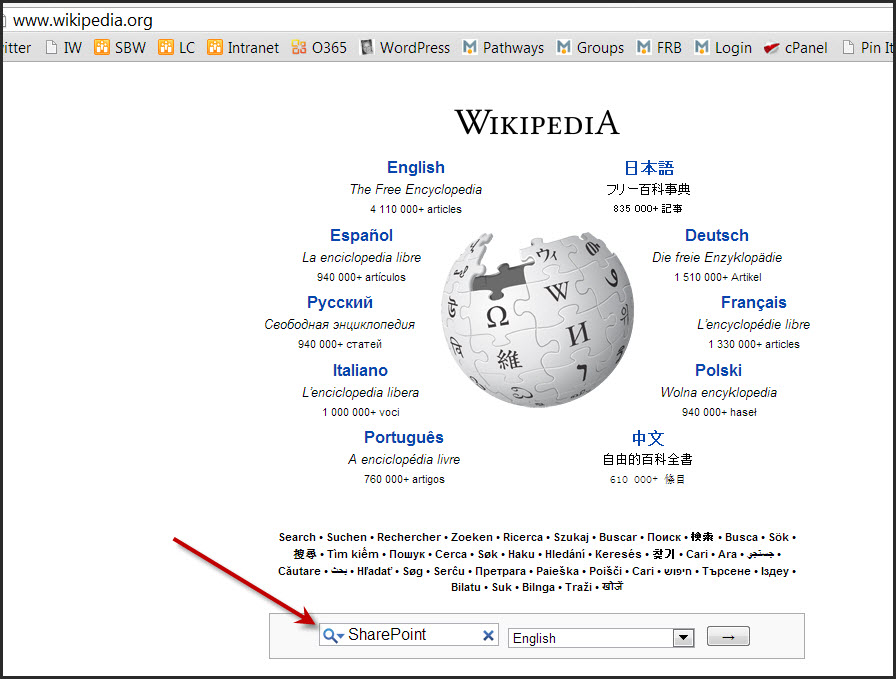
Text is presented to you that you read on
screen. You aren’t physically downloading anything or opening other
websites. Some words are blue hyperlinks which takes you to
explanations of what they mean. (Wikipedia is a giant online
encyclopedia made by the people for the people). Every page under the
puzzle page is an embedded page. There are over 2 million of them on
Wikipedia.
 It’s
the same thing on your SharePoint team site. A standard welcome Site
Page (landing page) is embedded into your team site with the ability to
create as many more of them as you like with links anywhere you like. (See working example).
The welcome page on a brand new Team Site is the same as the puzzle
page on Wikipedia. It’s your landing page and you can make many
embedded pages. (Download tutorial). You can link the views from your Lists and Libraries into your Site Pages. (Click here for a sample then click on the Tips, Tricks and Best Practices link).
It’s
the same thing on your SharePoint team site. A standard welcome Site
Page (landing page) is embedded into your team site with the ability to
create as many more of them as you like with links anywhere you like. (See working example).
The welcome page on a brand new Team Site is the same as the puzzle
page on Wikipedia. It’s your landing page and you can make many
embedded pages. (Download tutorial). You can link the views from your Lists and Libraries into your Site Pages. (Click here for a sample then click on the Tips, Tricks and Best Practices link).

So instead of having different subsites to
slice and dice information, you also have the ability to create a site
page instead and build navigation in to that page. If you have a flat
permission structure and everyone has to see everything with only one or
two Site Owners, there’s no reason why you couldn’t have one subsite
only with multiple Site Pages linked to the Quick Launch or Top Link Bar
as required. The Lets Collaborate website is built like this. No subsites, only pages.
It also means you don’t necessarily have to
have so many Word documents. If there is static information you’d like
to share, why not put it into a Site Page instead of a Word document.
That way you have multiple links coming into the information because
people can’t download it. This prevents duplication of files being
stored all over the platform. There’s the added benefit that if the
information is changed, it is instantly changed for everyone as there
are just links to it from other sites.


No comments:
Post a Comment